


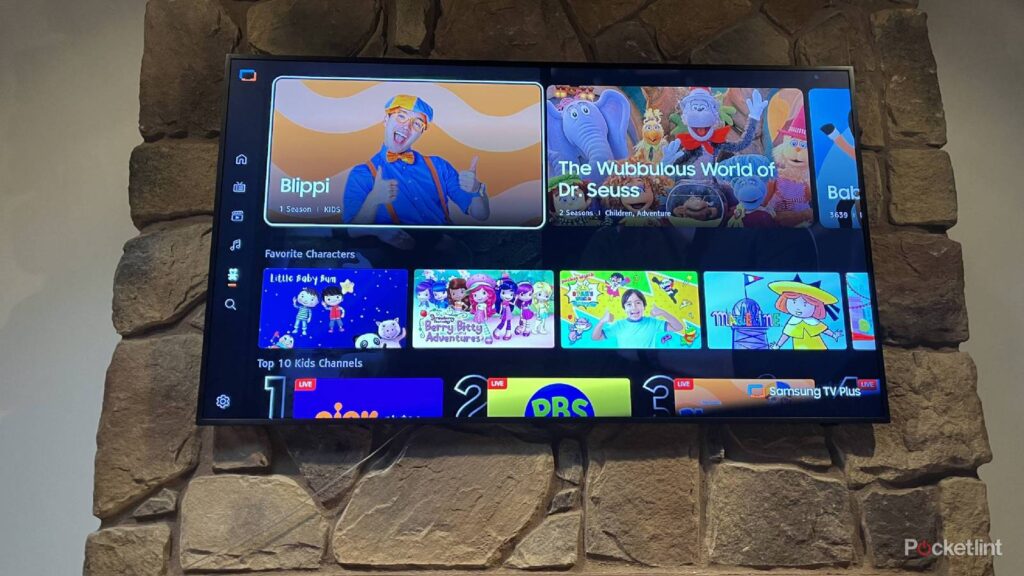
Picture this: you’re settling in to watch a weekend football game, only to find that the image on your Samsung TV is plagued by a persistent blur. This issue, disrupting your enjoyment of live sports, can be incredibly frustrating. Initially, you might suspect a problem with the TV itself, but when the same issue occurs on multiple Samsung smart TVs in your home, it’s time to dig deeper.
The realization that both TVs are Samsung models prompts a thorough investigation into the root cause. Fortunately, the solution is simpler than you might expect, and with a few adjustments, your viewing experience can be restored to its full glory. Here’s how you can fix the blurry images on your Samsung TV.
Checking the HDMI Connection
Sometimes, the simplest answer is the right one. While the cable box might not be the culprit, the HDMI cables connecting your devices could be. Over time, these cables can become loose or worn, affecting the quality of the image transmitted to your TV. Ensuring that your HDMI cables are securely connected to both the set-top box and the TV is a crucial first step.
For those with mounted TVs, like the Samsung One Connect Box, accessing these connections can be a bit more challenging. However, for TVs placed on a dresser or stand, checking the cables is straightforward. A secure connection can often resolve the issue without further adjustments.
Optimizing Samsung Picture Modes
Choosing the Right Mode for Your Content
Samsung TVs offer a variety of picture modes tailored to different viewing environments. These modes adjust the TV’s settings to optimize image quality based on ambient light and content type. Understanding these modes can enhance your viewing experience:
- Dynamic Mode: Ideal for bright rooms, this mode increases brightness to combat sunlight.
- Eco Mode: Focuses on energy efficiency by dimming the backlight and lowering general settings.
- Standard Mode: A balanced setting suitable for most viewing conditions.
- Movie Mode: Optimizes settings for dark rooms, enhancing low-light viewing.
- Sports Mode: While designed for sports, this mode can introduce a “soap opera effect,” potentially worsening blur.
Experimenting with these modes can help you find the best setting for your specific viewing needs. However, if the blur persists, further customization may be necessary.
Advanced Settings: Customizing Your Viewing Experience
Disabling Motion Smoothing
If you’re still dissatisfied with your TV’s performance, delving into the advanced settings can provide additional solutions. One common culprit of blurry images is Motion Smoothing, also known as video interpolation. This feature adds extra frames to the picture, which can inadvertently cause blurring during fast-paced sports events.
Accessing your TV’s home screen, navigate to Settings, then Picture, and finally Expert Settings. Here, you can disable Motion Smoothing to reduce blurring. This adjustment often makes a significant difference, especially for sports enthusiasts.
Fine-Tuning with Custom Settings
For those seeking even more control, Samsung smart TVs offer Custom Settings under the Picture Clarity menu. These settings allow you to adjust Blur Reduction and Judder Reduction, which are critical for refining image clarity.
“Blur and Judder adjustments can vary based on your Samsung TV model, but fine-tuning these settings can significantly enhance your viewing experience.”
By experimenting with these options, you can achieve the perfect balance for your specific TV model, whether it’s a Samsung The Frame TV or another model.
Looking Ahead: Ensuring Optimal Viewing
Once you’ve found the ideal settings, consider saving them to avoid repeating the process. Many smart TVs allow you to store preferred settings for different types of content, ensuring a seamless viewing experience every time you turn on the TV.
In conclusion, fixing blurry images on your Samsung TV involves a combination of checking physical connections and adjusting settings. By following these steps, you can restore your TV’s picture quality and enjoy your favorite sports and shows without interruption. As technology continues to evolve, staying informed about your TV’s features and settings can help you make the most of your viewing experience.