



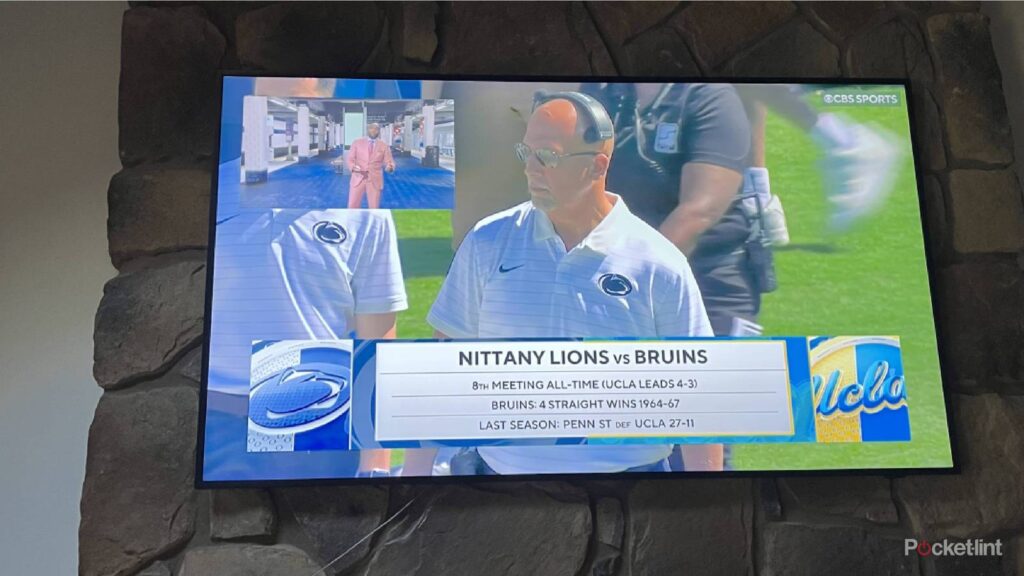
Finding myself in a conundrum recently, I faced the challenge of watching two live sports games simultaneously. Both my beloved New York Yankees and the Penn State Nittany Lions were playing at the same time, and I was determined to catch every moment of both matches on my Samsung TV.
The dilemma was clear: Should I resort to old-school methods like using the radio for one game while watching the other on TV? Or perhaps balance my laptop precariously on my lap for one game while the TV displayed the other? Neither option seemed ideal, particularly because flipping between channels would mean missing significant portions of each game.
Exploring Modern Viewing Options
Recalling the days when picture-in-picture (PIP) was a standard feature on many TVs, I hoped my Samsung The Frame TV might offer a similar solution. However, I quickly discovered that PIP, as I remembered it, was no longer available. This realization highlighted a broader trend: as cable usage declines, so too do features tailored for traditional live TV viewing.
Despite the absence of PIP, I was determined to find a way to watch both games at once. Enter Samsung’s Multi View feature, a modern twist on the old PIP concept. This tool promised the ability to split my screen into two separate viewing areas, but it required some creativity and effort to set up.
The Samsung Multi View Solution
With my Samsung The Frame TV and Xfinity cable service, I dove into the TV settings and discovered the Multi View option. Initially, I thought I could simply select two channels from Xfinity, but the system only allowed one selection. This limitation forced me to explore other possibilities.
After some trial and error, I realized I could use another device to fill the second screen. My laptop became the key, as I could stream the Yankees game via Fox Sports’ website, accessible through my Xfinity subscription. This required activating screen mirroring on my MacBook Pro, which I then connected to the TV via Bluetooth.
Setting Up Multi View
The process involved selecting the cable option for one screen and the laptop for the other. After making my TV discoverable via Bluetooth, my MacBook Pro appeared on the list of connectable devices. A few clicks and a code entry later, both the cable stream and the laptop’s content were displayed side by side on the TV.
The Samsung remote made it easy to choose exactly how to display the streams. I could do them side-by-side or make one the main picture with the other as the inset.
This setup allowed me to enjoy a true picture-in-picture experience, swapping the smaller and larger screens with ease. Despite the technical hurdles, the solution worked, providing an enjoyable viewing experience, even if both teams ended up losing that day.
Lessons and Future Considerations
While the process was somewhat cumbersome, it demonstrated the potential of modern TV features like Multi View. Interestingly, I discovered that I could have mirrored my phone screen as well, though it would have resulted in a smaller, vertically oriented display.
This experience also highlighted the evolving landscape of television viewing. With platforms like YouTube TV offering Multiview options that allow up to four simultaneous streams, the traditional cable subscription feels increasingly outdated. Such advancements suggest a shift towards more flexible, internet-based viewing solutions.
In conclusion, while the absence of traditional PIP features on modern TVs might initially seem like a setback, the availability of innovative solutions like Multi View offers new ways to enjoy live sports and other content. As technology continues to evolve, viewers can expect even more seamless and integrated viewing experiences in the future.